Method 1: Apple's built-in Table Tennis workout
The Workout app has a Table Tennis workout built in, so you don't need to install anything.
How to start it
- Open the Workout app on your Apple Watch.
- Turn the Digital Crown to scroll to the bottom of the workout list.
- Tap the Add button (+). On watchOS 10 and 11 it's labeled Add Workout.
- Choose Table Tennis.
- Tap the Play button to start. On watchOS 10 and 11, tap the workout to start.
- When you finish, swipe right and tap End. On watchOS 26 and later, you can then turn the Digital Crown to rate your effort. On watchOS 11, scroll down and tap Add Effort first.
If Table Tennis is already in your list, just tap it. The list order changes based on the workouts you use, so it gets easier to find.
What it tracks
Raise your wrist during play to see elapsed time, calories burned and heart rate. Before you start, you can change what it shows. On watchOS 26 and later, tap the Views button on the workout. On watchOS 11, tap More Options, then Preferences, then Workout Views. Afterwards, your workout shows up in the Fitness app on iPhone and in the Health app.
What it doesn't track
Apple's documentation lists no stroke, swing or score metric for table tennis or any other racket sport. So the built-in workout doesn't count your strokes, tell a push from a drive, estimate stroke speed or keep score.
Two things to know
- Start the workout yourself before you play. Apple doesn't say whether the watch detects table tennis on its own.
- Auto-Pause won't help between points. Apple describes it only for outdoor running and cycling workouts. To pause by hand, press the side button and the Digital Crown at the same time.
Method 2: PingPongWatch for strokes, ratings and score
PingPongWatch is an Apple Watch app that detects your strokes from your wrist motion. It needs watchOS 26.2 or later on the watch and iOS 26.2 or later on the iPhone. The watch app comes with the iPhone app. Setup on the iPhone asks for your height, your skill level and access to Apple Health. You can skip height and skill level, and you can decline Health access. Setup ends on a paywall for the iPhone app. You don't need to pay to use the watch app.
How to track a session
- Open the PingPongWatch app on your watch.
- On the home screen, pick LEFT or RIGHT to match the wrist you wear the watch on. Wear it on your paddle hand.
- Tap START. Tracking begins right away, with no countdown.
- Play. A "Learning Your Stroke" banner counts your first five strokes. Text tips start after that. After each stroke, the screen flashes green, amber or red.
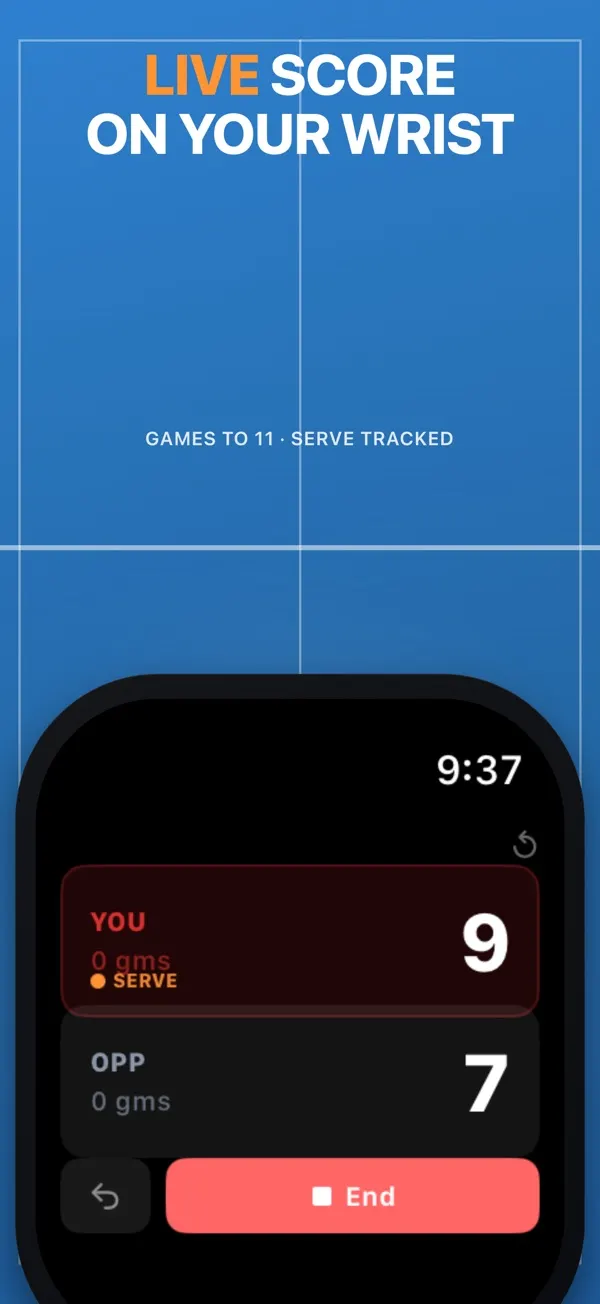
- To keep score, swipe to the page on the right of the dashboard and tap YOU or OPP after each point. Before the first point, you can tap the serve dot to pick who serves first. Pause is on the page to the left.
- Tap End Session. Your summary appears on the watch. The session is sent to your iPhone right away, or later when the phone is back in range.
What it adds
- Stroke count and ratings. Each stroke gets a green, amber or red rating as you play. Drives, chops and smashes are rated against your own fastest strokes. Pushes and blocks are rated against set speed ranges. The ratings are tuned to be encouraging, most of all at Beginner level, so treat them as motivation, not a technique analysis.
- Table tennis stroke types. The summary sorts your strokes into forehand and backhand drives, pushes and blocks, plus chops and smashes. Stroke names appear after the session, not during play. There's no serve, loop or flick label, so those are counted under other stroke names.
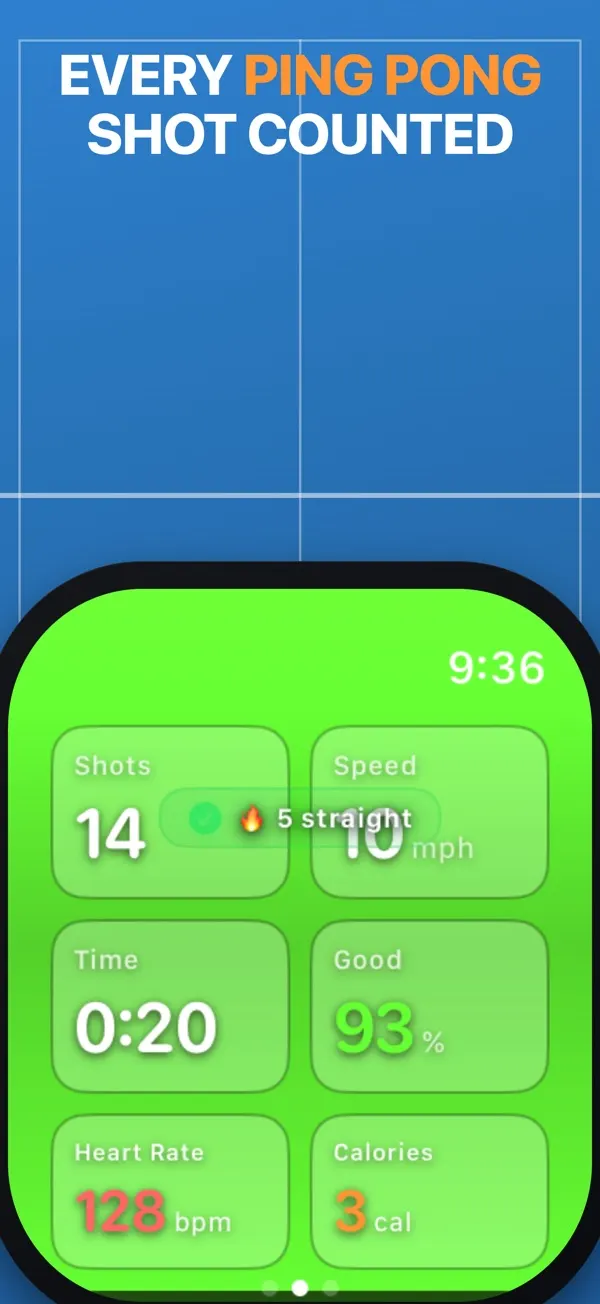
- Estimated stroke speed. The watch shows the estimated speed of your last stroke in mph. The summary shows your top and average speed. The number comes from how fast your wrist rotates, adjusted for your height setting. It estimates paddle speed, not ball speed.
- Score keeping. Tap YOU or OPP after each point. The arrow at the bottom left takes back the last point. Games go to 11, won by 2, and matches are best of five. The watch shows who serves, switching every two points and every point from 10-10. To clear the match, tap the reset arrow or press and hold, then confirm. There's no option for other formats.
- Apple Health workout. If you allow Health access, each session is saved as a Table Tennis workout with heart rate and calories. Don't start one in the Workout app too. The watch runs one workout at a time, so starting a second one ends the first.
Workout app vs PingPongWatch
Apple Workout app
Cost: free and built in.
Heart rate and calories: yes.
Saves to Apple Health: yes, and to Fitness.
Stroke count and stroke types: no.
Stroke speed: no.
Score keeping: no.
PingPongWatch
Cost: tracking on the watch is free. The iPhone app, with your history and trends, needs a paid plan.
Heart rate and calories: yes, if you allow Health access.
Saves to Apple Health: yes, as a Table Tennis workout.
Stroke count and stroke types: yes. Serves have no label of their own.
Stroke speed: estimated, in mph.
Score keeping: yes, games to 11, best of five, with a serve marker.
The Workout app is enough for time, calories and heart rate. PingPongWatch adds stroke counts, stroke types, speed estimates and score keeping.
Tips for accurate tracking with PingPongWatch
- Wear the watch snugly on your paddle hand.
- Set LEFT or RIGHT before you tap START.
- Set your skill level in the watch app's Settings. It changes how strictly strokes are rated. Intermediate and Advanced are in beta.
- Set your height in the same place. The speed estimate uses it to adjust for arm length. The height setting is also in beta.
- Haptics are off by default. To feel a tap on your wrist after each stroke, swipe to the page on the left during a session and tap Sound.
- Very short touch strokes near the net may not register, and neither may two strokes very close together. Blocks are named by speed, so a firm block may get another stroke name. The app is tuned to ignore walking.
- The watch summary doesn't show the score, so check the score page before you end the session.
- Don't force quit PingPongWatch during a session, or that session's strokes are lost. Sessions with no strokes and no score aren't sent to your iPhone. If a session doesn't show up there, keep the phone near the watch with Bluetooth on.
Questions
Does Apple Watch have a ping pong workout?
Yes, under the name Table Tennis. It's one of the workout types in the Workout app. If it isn't in your list, scroll to the bottom and tap the Add button. On watchOS 10 and 11 the button is labeled Add Workout.
Does Apple Watch count ping pong strokes or keep score?
Not with the built-in workout. Apple lists no stroke, swing or score metric for table tennis. PingPongWatch counts your strokes, names them in the summary and keeps the score.
Does Apple Watch detect table tennis automatically?
Apple doesn't say it does. Its guide mentions workout reminders for walking, running, swimming and other workouts, without naming table tennis. Start the workout yourself before you play.
Is the Apple Watch calorie count accurate for ping pong?
Apple gives no accuracy figure for calories, so treat the number as an estimate. Apple says heart rate readings are better for rhythmic movement, such as running or cycling, than for irregular movement, such as tennis or boxing. If you can't get consistent readings, Apple says you can connect an external heart rate monitor, such as a Bluetooth chest strap.
Can PingPongWatch keep score in doubles?
There's no doubles mode. You can still score a doubles game, because the serve passes to the other side every two points in both, but the watch doesn't track which player serves.
Do I need my iPhone at the table for PingPongWatch?
No. Stroke detection and score keeping run on the watch. Each session syncs to your iPhone when the phone is back in range.
Is PingPongWatch free?
Tracking, score keeping and the end-of-session summary on your Apple Watch are free. The iPhone app, with your history and trends, needs a paid plan.
About the author
I'm George Yameen, a solo indie developer. I build sports apps for Apple Watch because I love these sports and wanted a better way to track my own game. Questions about this guide? Get in touch or find me on X at @GeorgeYameen.